Install PBLEmulator: Fast Setup & PC Requirements
In the modern era of 2026, even in the age of advanced gaming technology, are you still buying expensive consoles? Then you are doing wrong with yourself. Do you also want to enjoy mobile games or console games on your PC? That too completely free! Then you should install PBLEmulator. This emulator has become a top trend in the market based on its speed and stability.
What is PBLEmulator?
Are you thinking what this is? Then you are not alone. Many people ask this question. PBLEmulator is a very important tool that makes both your old and new types of PCs capable of running other operating systems such as Android or apps like games on them. It is very lightweight and runs fast on both new and old PCs. It is smooth as well.
Many people ask: What is the most trusted emulator? Or which is the fastest emulator for PC? For all of them, there is only one choice. Can you guess? If not, then I will tell you — “PBLEmulator”. PBLEmulator prefers security along with speed.
PC Requirements: Do You Need a Good PC to Run Emulators?
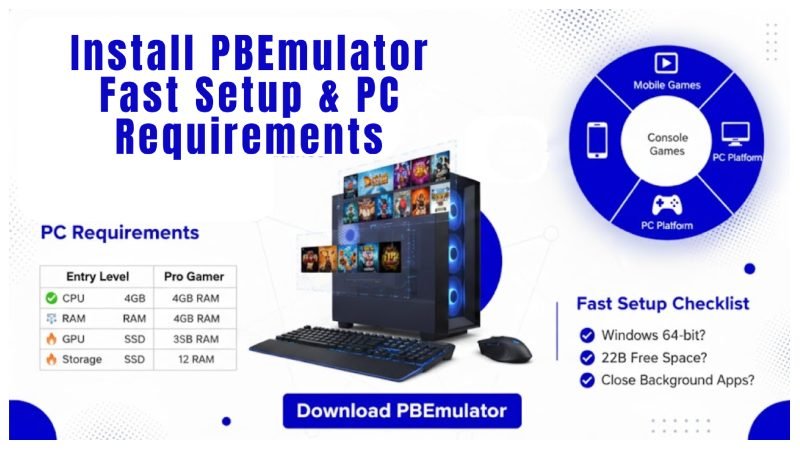
Emulation mostly depends on hardware because hardware helps in running emulations. So if your question is, “Do you need a good PC to run an emulator?”. It depends on how you use it. If you are running normal or lightweight games, a normal PC can handle it. In fact, it is enough. But if you are doing heavy gaming, then obviously the hardware should also be a bit strong, meaning extra power is required. If you are using an Intel processor, you can check the official Intel guide to see if your CPU supports virtualization, which improves emulator performance.
A very important note to improve performance: Do emulators slow down your PC? The answer is both yes and no. When you have good RAM and an SSD installed, the answer is no. And when you have very low RAM and you are using a normal low-capacity hard drive, then the answer is yes. You can also increase performance on low RAM and normal hard drive, just make sure to close heavy apps and videos running in the background.
Step-by-Step Guide: How to Install PBLEmulator
No matter you are installing it for the first time or you have installed it before, both can improve through this guide.
- First, open the official website of PBLemulator and look for the download option.
- Click on the big download button visible on the home page.
- For security reasons, do not use any third-party app or link so that you can stay safe from viruses.
- Check the file size. It should be 400–600 MB. Do not turn off the internet until it is fully downloaded.
- Once the download is complete, double right-click on the installer file to open it.
- Now Windows will ask for permission, so allow it.
- After permission, the window will ask for the path where you want to install the software. My suggestion is to leave it as default C drive.
- After clicking a few “Next” buttons, press the final install button. You will see a progress bar. Wait until it completes.
This step is for those who want to test in offline mode. Whether you are an expert or new, some tips and tricks can increase your performance a lot. For complete tips and tricks, check our full article on tricks.
Conclusion
Now you understand how to install PBLemulator. Details about PC requirements have also been explained. You also know that this software is very fast and user-friendly. It is best for both old and new systems. If you have a mid-range or normal PC, you can easily use it without any tension. The golden rule: go to BIOS settings and make sure to turn on Virtualization, otherwise you will not get the speed and performance that was promised to you. For more technical guides visit PBL Emulators
FAQ: Frequently Asked Questions
1. What is needed to run an emulator?
To properly run an emulator, you need a 64-bit Windows and at least 4GB RAM. BIOS must be enabled.
2. Is using an emulator risky for my PC?
No, there is no risk as long as you download it from the official website.
3. Which emulator is safe for PC in 2026?
There are many options in the market, but PBLemulator is the best.
4. Can an emulator be detected by games?
Simple answer is yes, it can be detected.
5. What’s the best emulator for low-end PC?
For old PCs, PBLemulator is the best choice.